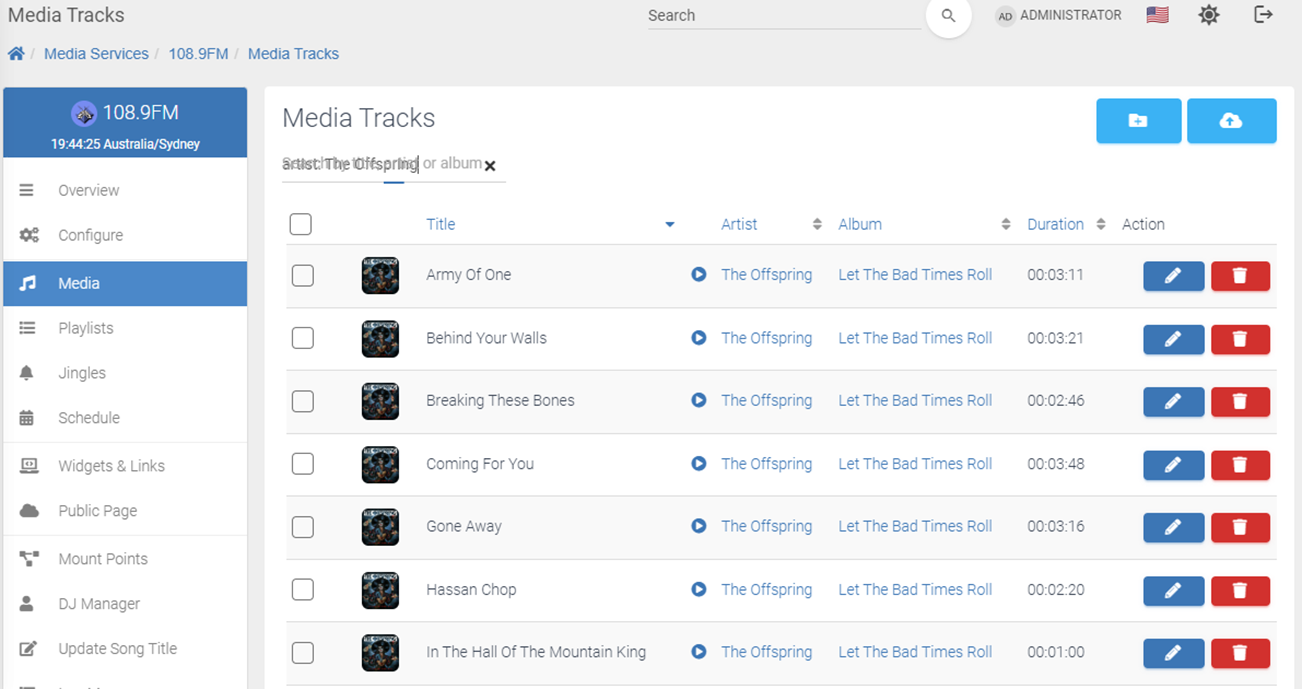
In this section you will learn how to check metadata and upload audio files to the Media Control Panel.
The Media Library user interface offers a comprehensive way to manage and organise tracks to be used with AutoDJ, as well as meta data and album covers for individual tracks. Access to this interface is only enabled where AutoDJ is enabled on the service.
Tips & Tricks
Checking Metadata
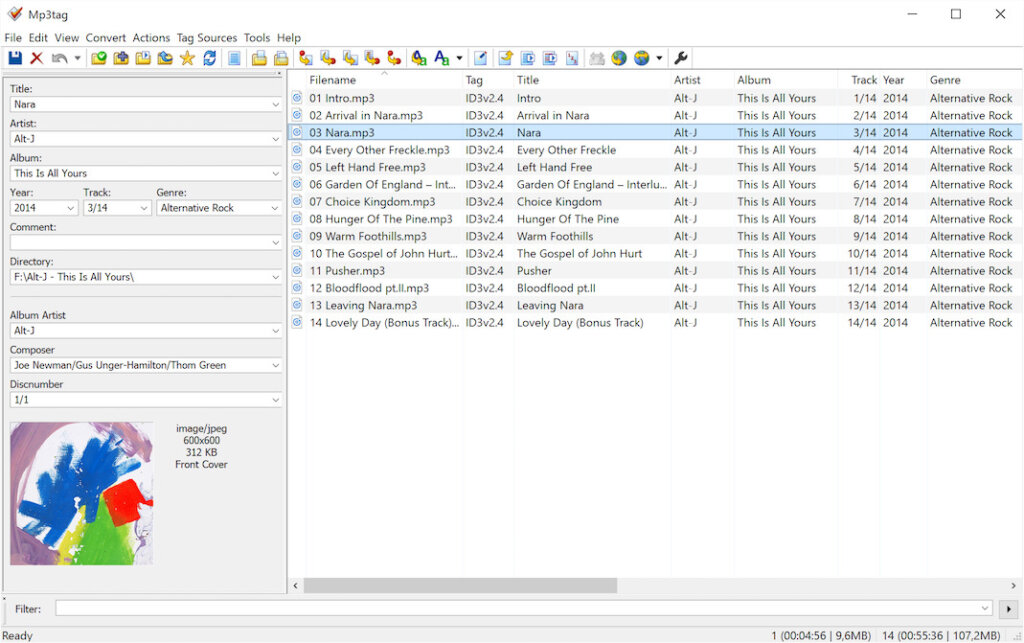
Music files typically contain meta data which includes information such as the Title, Artist, Album and other information. This is important information that is displayed on the service and is also used to obtain Album Art Covers.
It is possible to easily check this on your PC by following these steps:
- Right click on media item and select Properties
- Select the Details tab
- You should now see meta data such as Title, Album and Year. If this information is not available, then you can enter it in the details tab and select Apply.
Checking Multiple Files
For checking multiple files and automatically applying meta data, we recommend instead to use software such as MP3TAG. This software is very popular and used commonly by broadcasters.
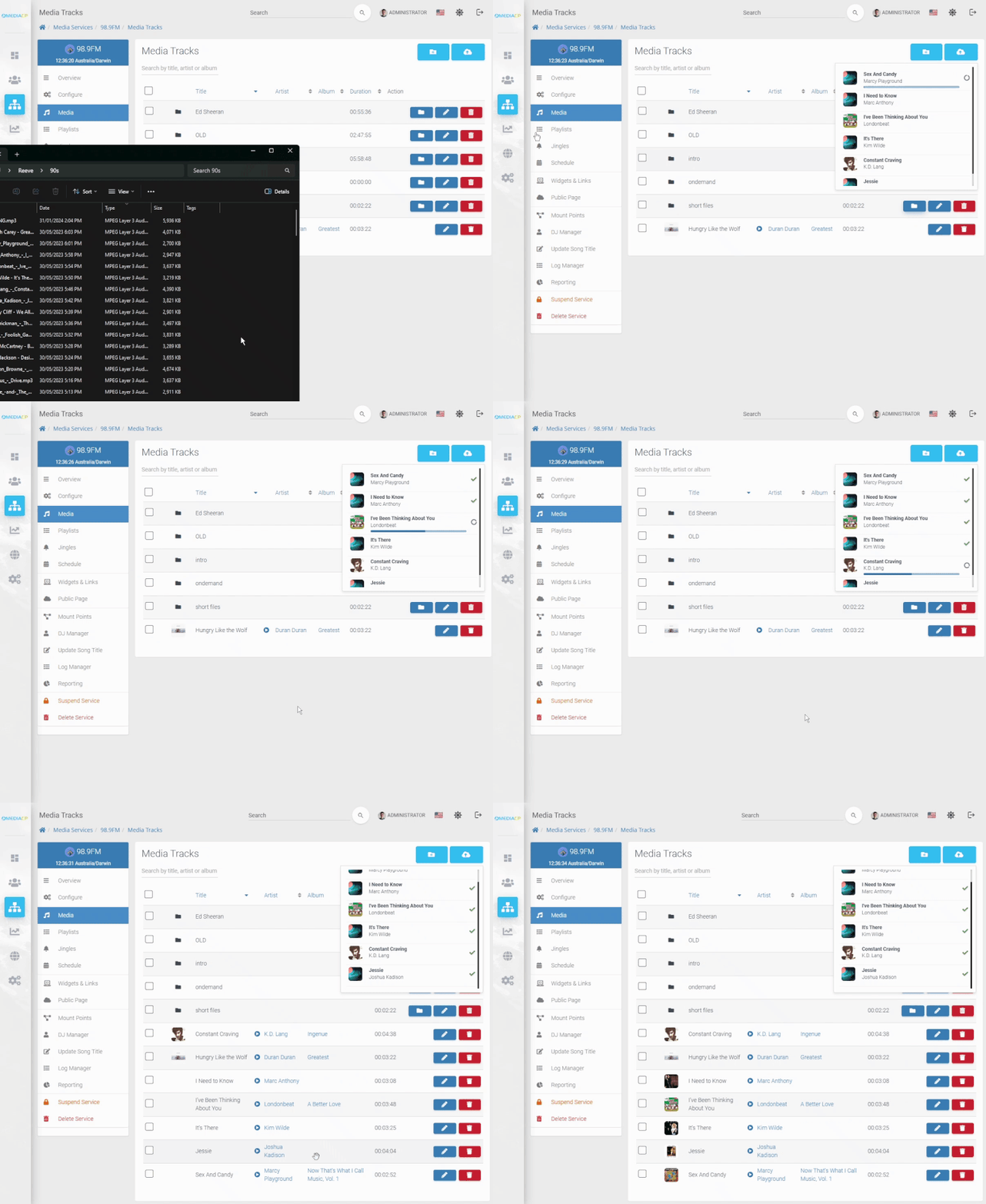
Navigate to the Media Manager
Drag and drop the media files from your PC to the Media Manager
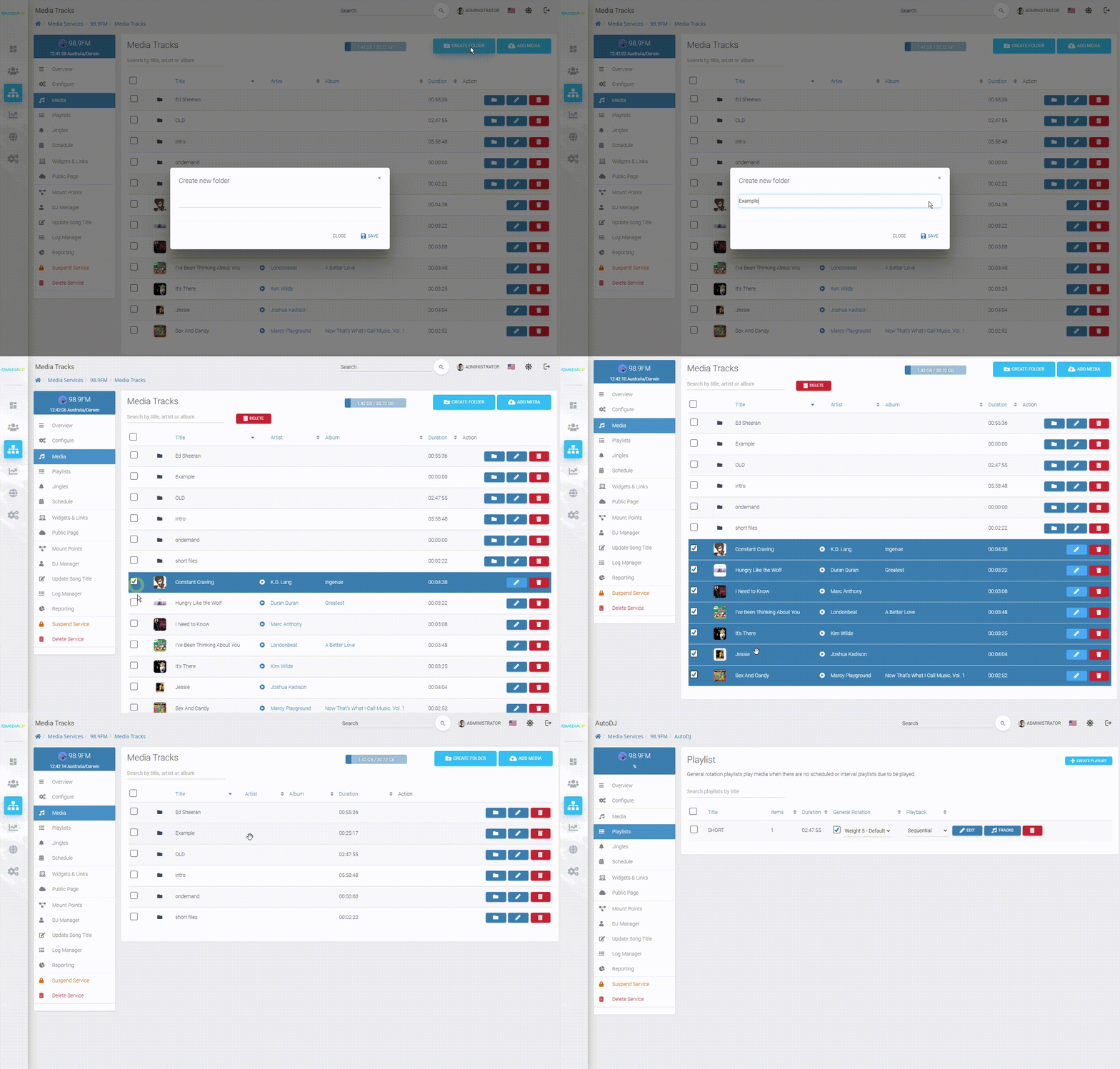
Managing Audio Files
Creating folders in the Media Manger allows you to organise your files. You can then setup playlists with AutoDJ to playout entire folders of content.
Edit Metadata
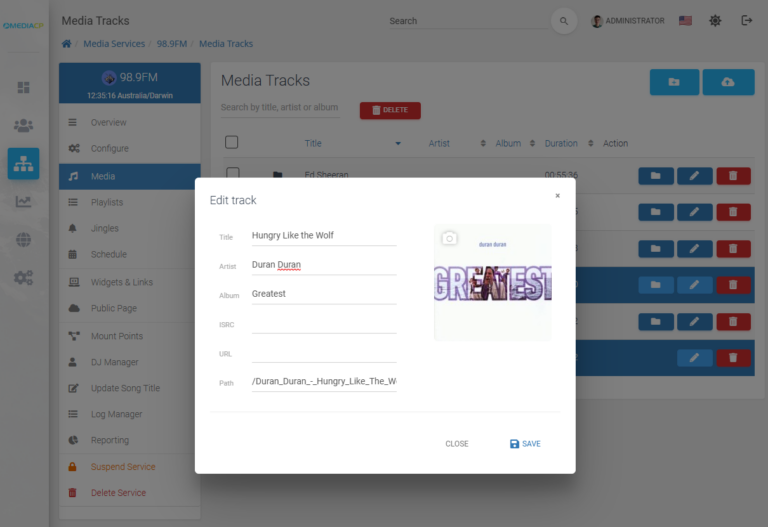
You can edit the metadata and cover art from within the panel by right click on your uploaded media and selecting Edit track
- The search bar input allows searching of title, artist or album name and is smart enough to find the right content.
- Prefix your search with “title:”, “artist:” or “album:” to search specific data
- Click on an Artist or Album name to quickly find similar content