Mount points allow the creation of multiple broadcasts within a single streaming instance. By default services in the Media Control Panel will have a mountpoint named “/stream”. Additional mount points can be created to allow for additional broadcasts or fallbacks.
The primary usage of this feature is to broadcast at different audio qualities depending on listener requirements. It also allows you to stream different formats (aac and mp3) to maximize device support.
Imagine streaming a high quality (128Kbps AAC), medium quality (96Kbps AAC), low quality (48Kbps) as well as an MP3 48Kbps all from a single service.
Note: Your total mount point bitrate configuration should not exceed the total amount set on your plan limit (i.e. 128kbps, 192kbps, 320kbps).
Configuring Multiple Mount Points with AutoDJ
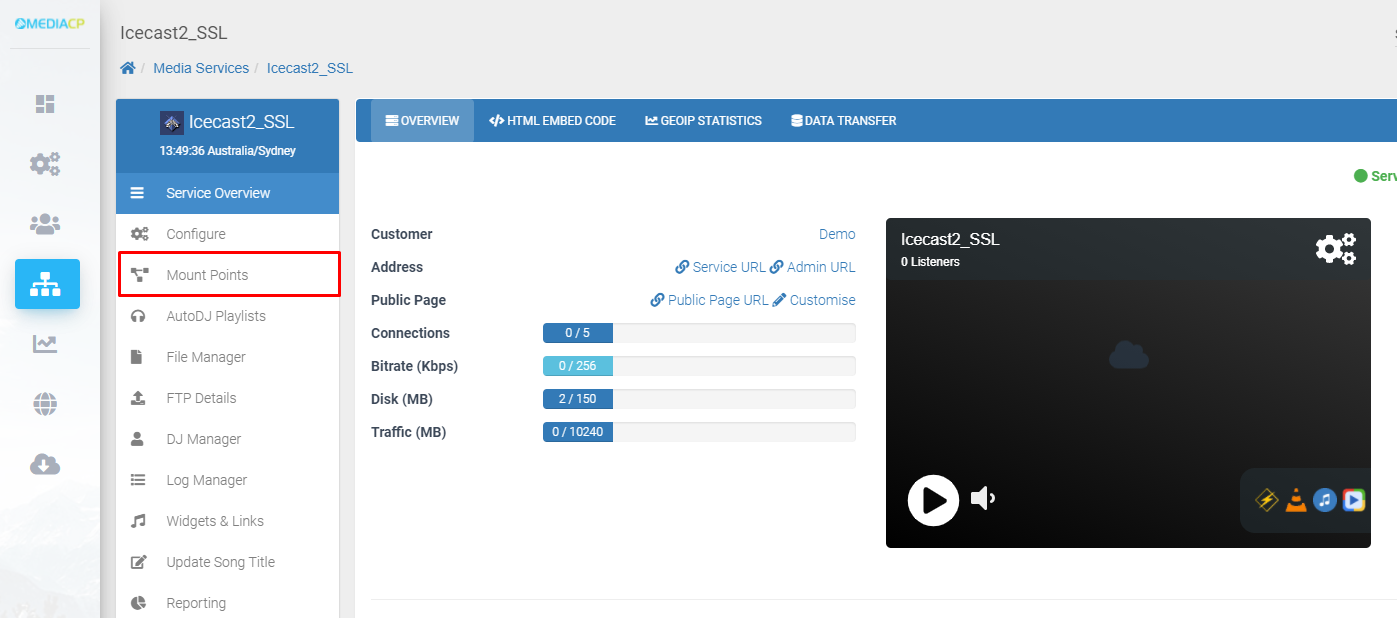
Each audio media service includes a default mount point, configured with an AutoDJ service (if AutoDJ is enabled). You can configure mount points for their service, as well as add or remove mount points (where limits permit).
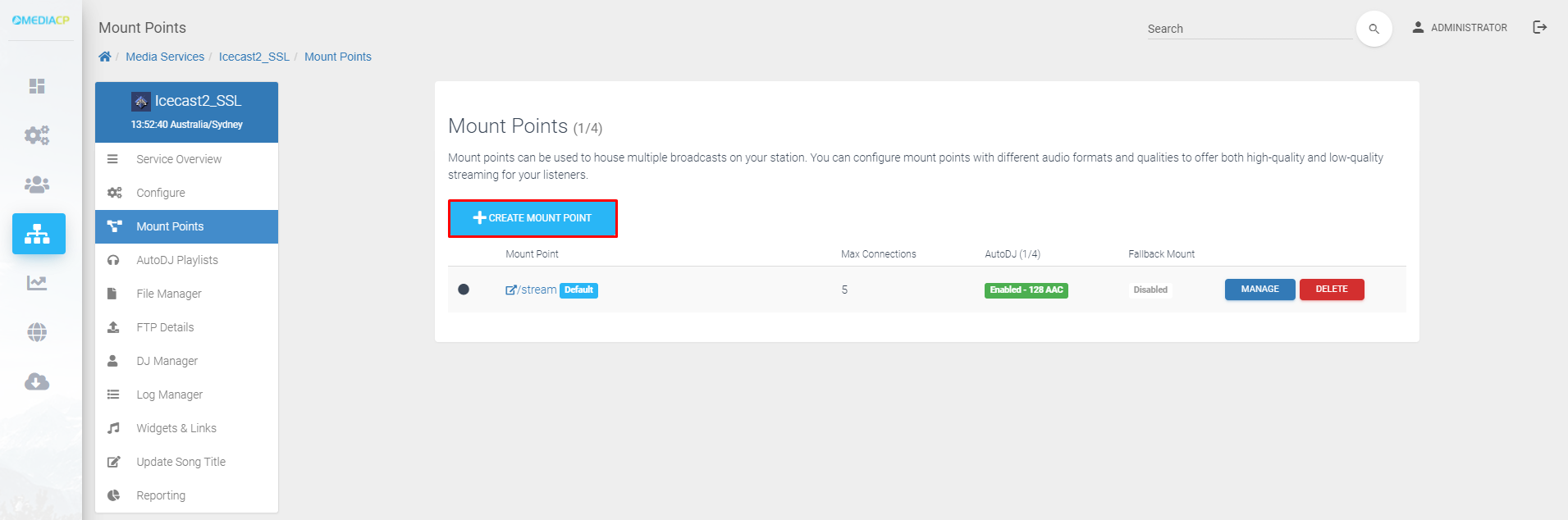
If your plan permits more than one mount point, a button to create additional mount points will become present on screen.
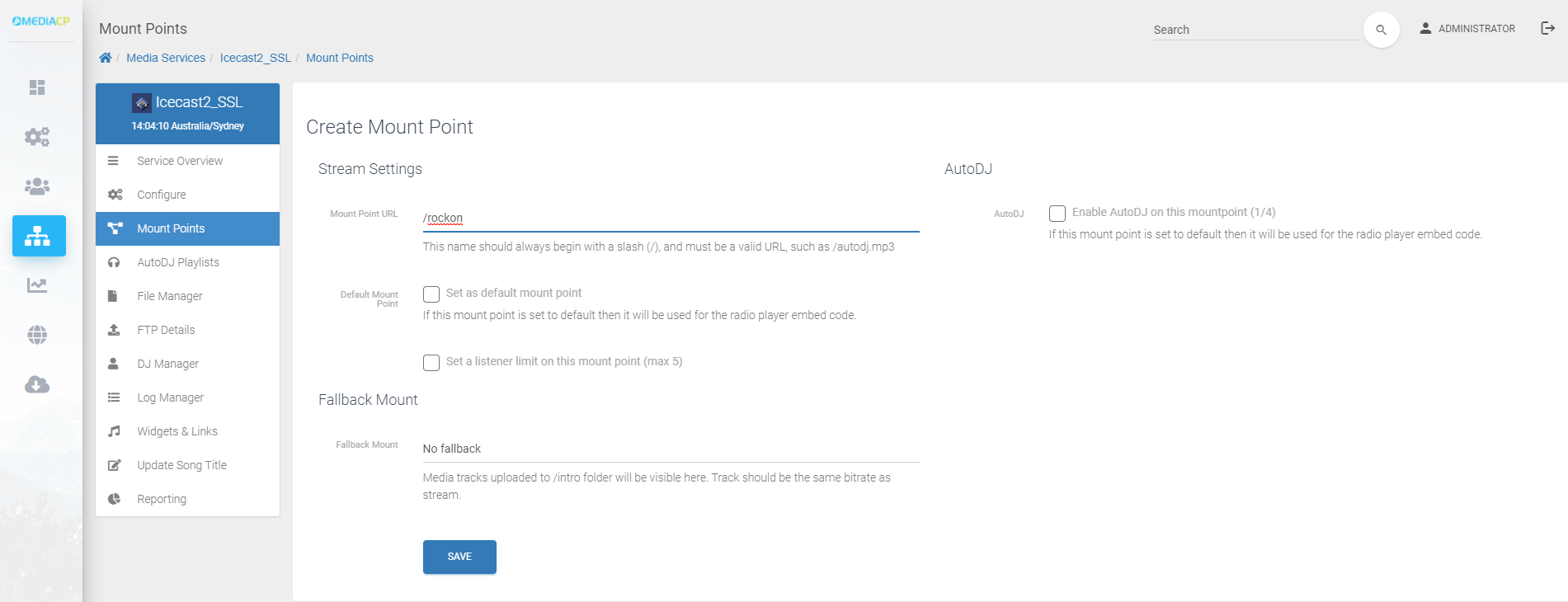
Clicking the ‘create mount point’ button will display the form below. Here you can set the mount point name, configure a fallback and enable autodj for the mountpoint. You will need to hit the ‘save’ button and then restart your shoutcast/icecast service to apply the changes.
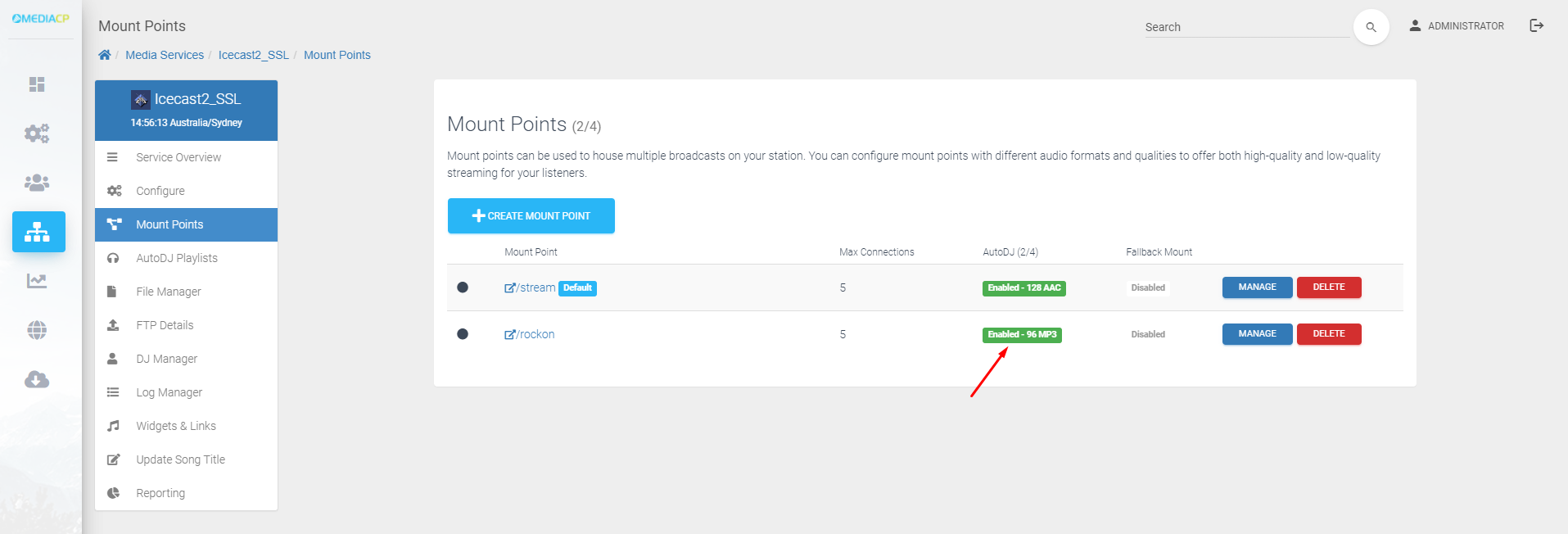
Once the mount point has been saved it will appear in the list of available mount points.
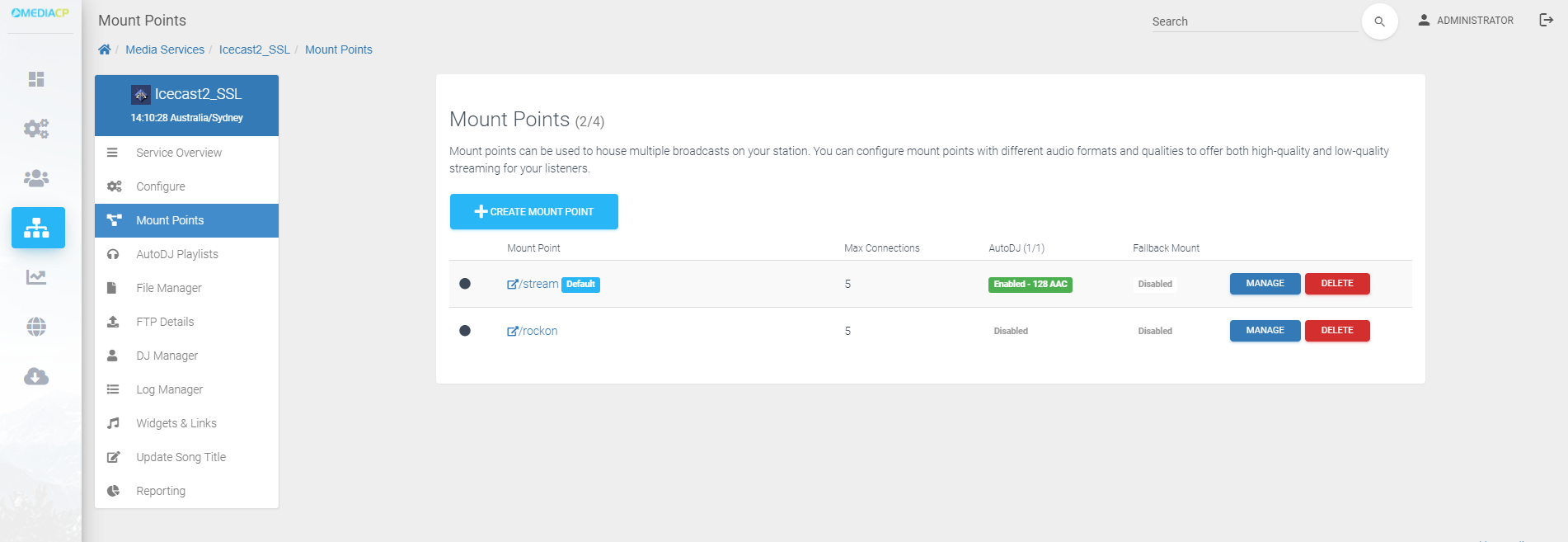
If a service is configured to allow multiple AutoDJs you can update your mount points to enable AutoDJs for specific mount points - please check with Support if this is enabled on your plan.
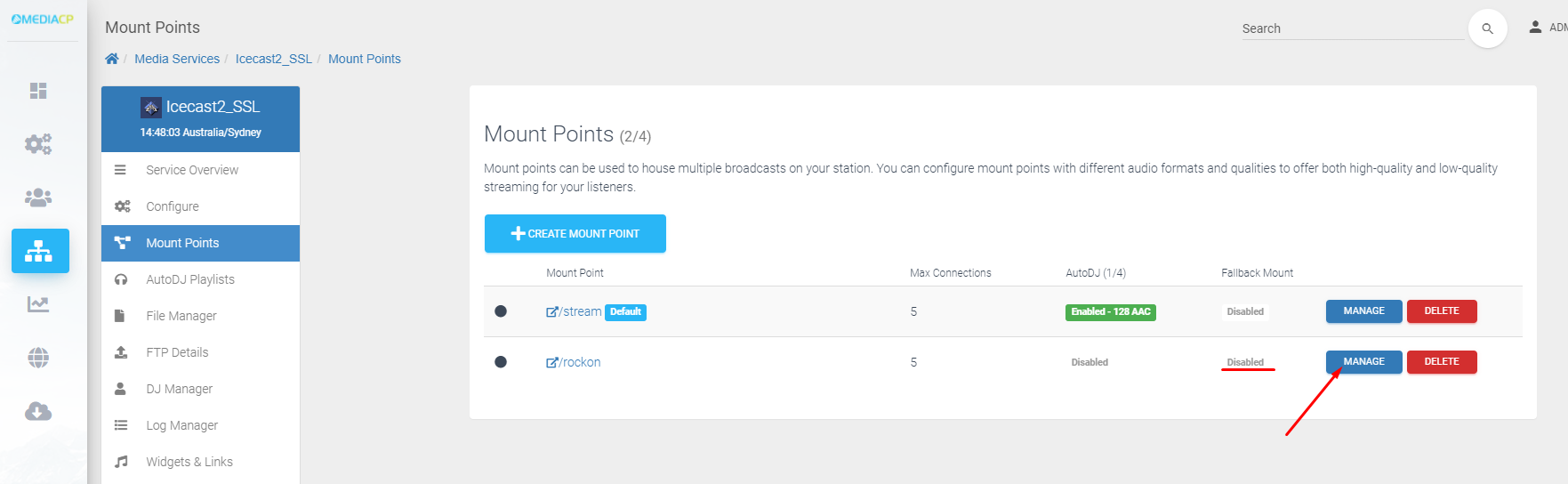
In the mount point form you will need to tick the AutoDJ setting to enable the feature, once enabled you will see the form below which will allow you to set the; Bitrate, Format, Channels and Sample rate for the AutoDJ. Additionally you will be able to add the stream information for AutoDJ.
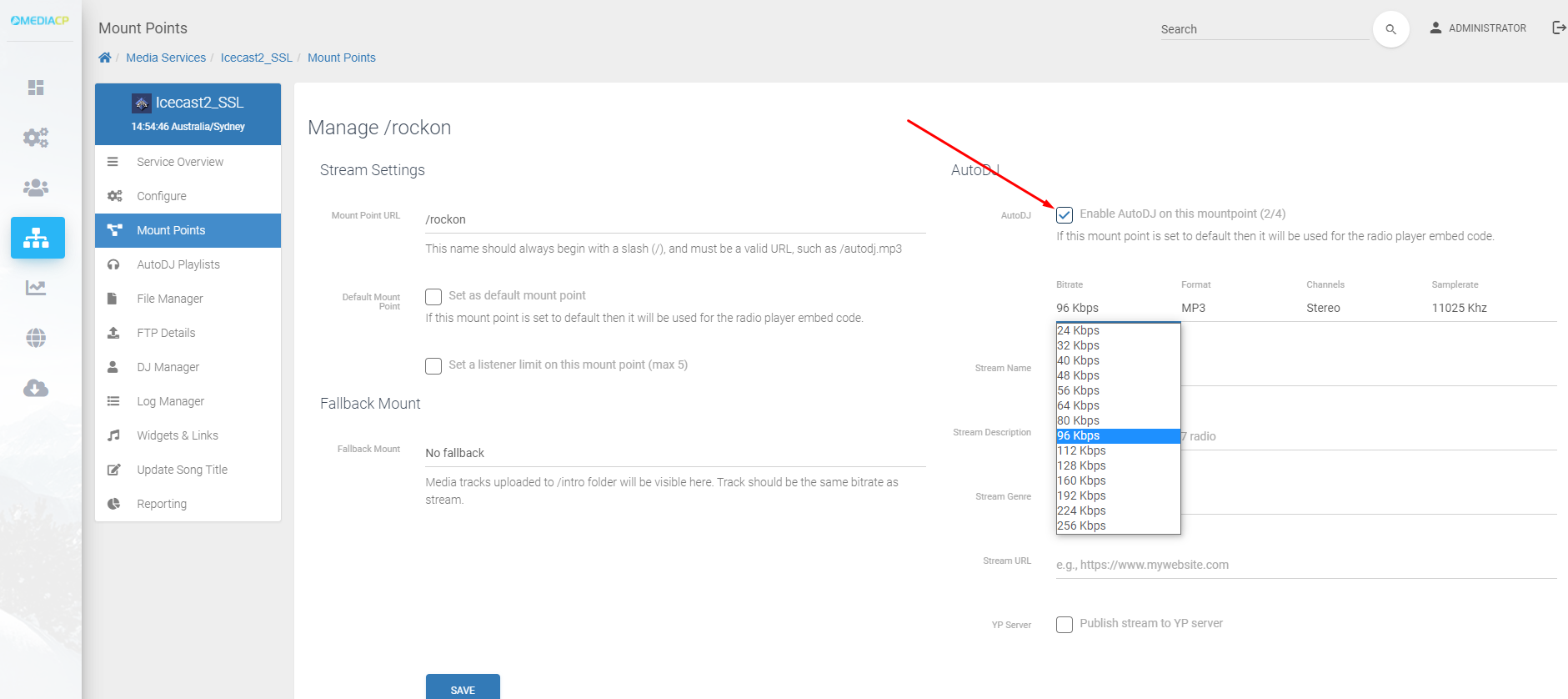
After enabling autodj on the mount point you will need to save the changes by hitting the save button. This will take you back to the mount points page where you will see autodj now running on the mountpoint with the new bitrate.