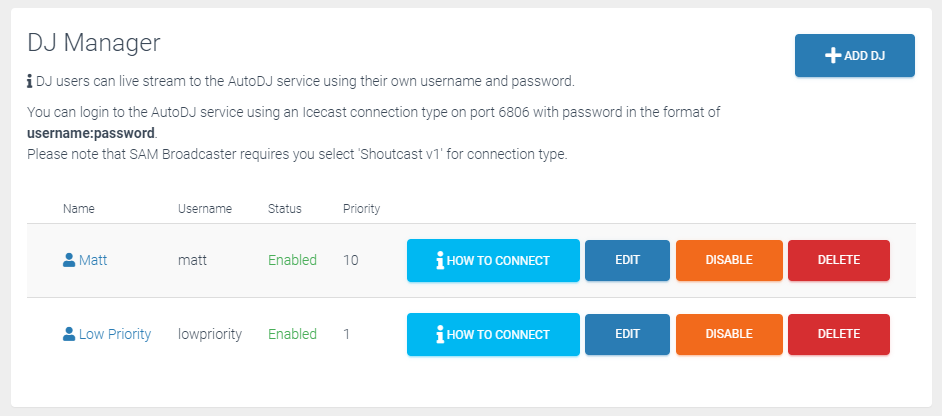
DJ accounts can live stream to their service using their own private credentials and can be additionally by configured to allow broadcasts only during certain hours and with priority over other DJ accounts.
Shoutcast requires AutoDJ to be enabled in order to use the DJ Manager. Icecast is able to use the DJ manager without AutoDJ but will be limited in features such as DJ Priority and Scheduled access. The DJ manager is best utilized by using AutoDJ.
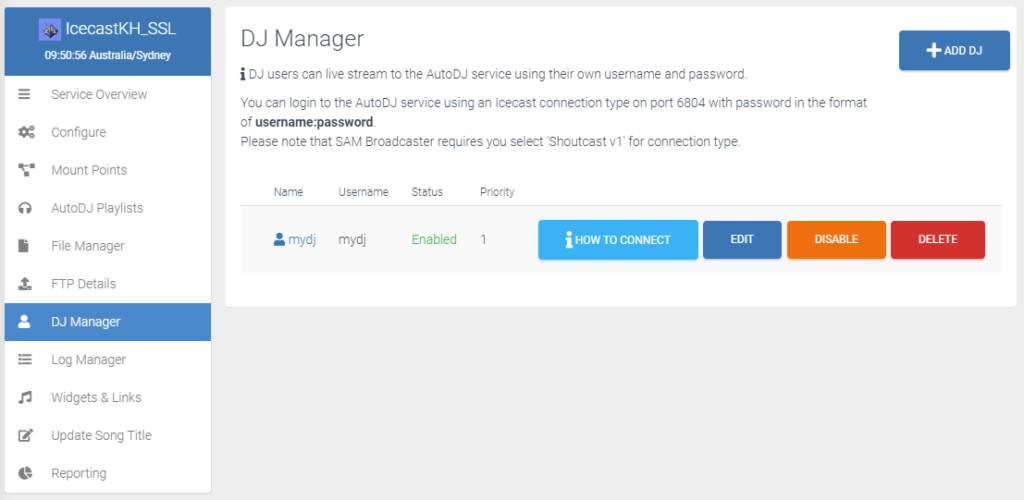
Step 1 - DJ Manager
You can manage and create new DJ accounts from the DJ Manager page.
To get started using the feature, create a new DJ by pressing the Add DJ button in the top right corner.
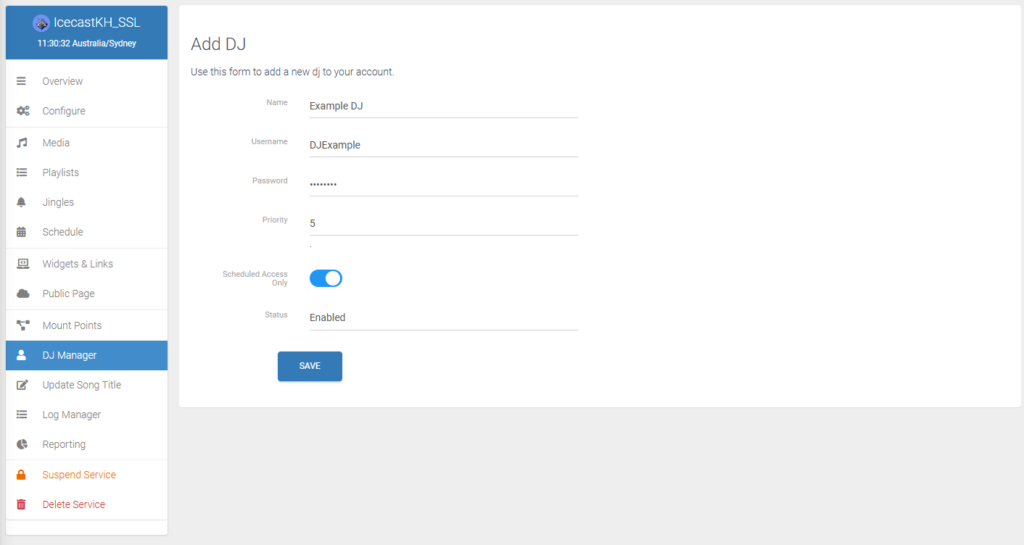
Step 2 - Create DJ Account
Input the DJ account details in the relevant fields, from here you can also set the Priority and Scheduled Access options if you have AutoDJ enabled.
Step 3 - How to Connect
Click the How to connect button next to the DJ you wish to connect as.
It is important to note that for priorities to work, you MUST have AutoDJ enabled and connect using an Icecast 2 compatible encoder with the mount point as specified.
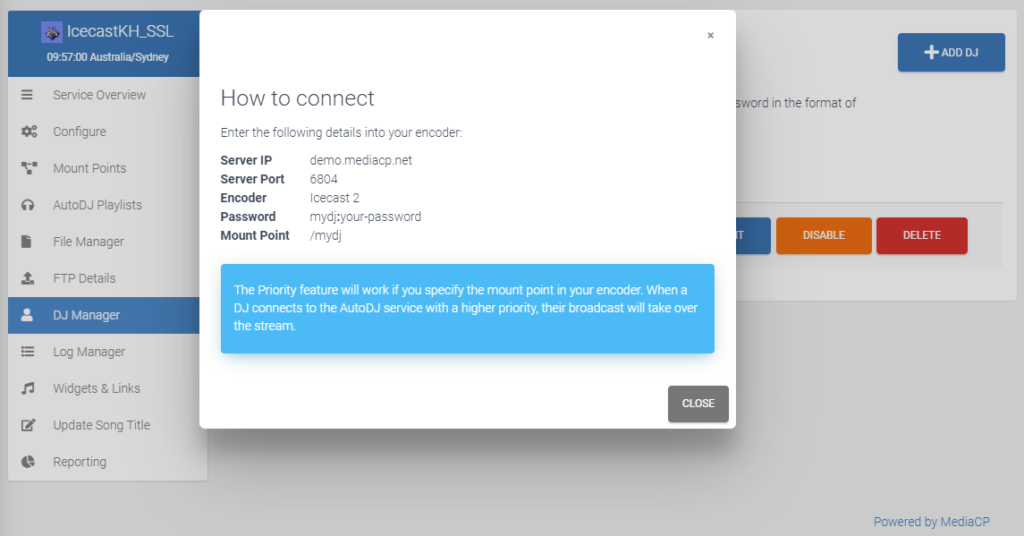
Step 4 - Connect with Encoder
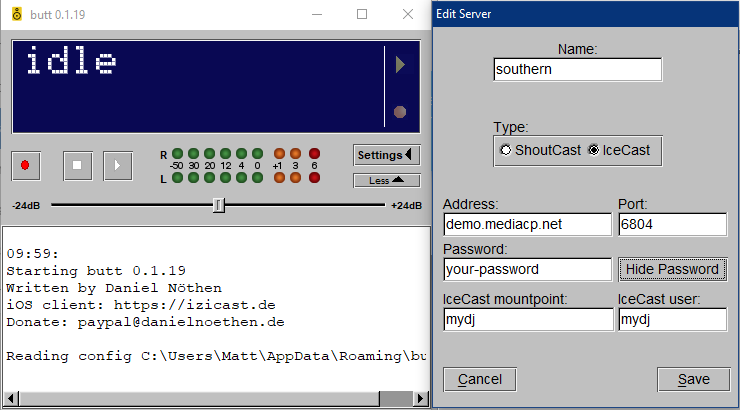
Configure your encoder as described in the How to connect section of the panel.
Scheduled Access
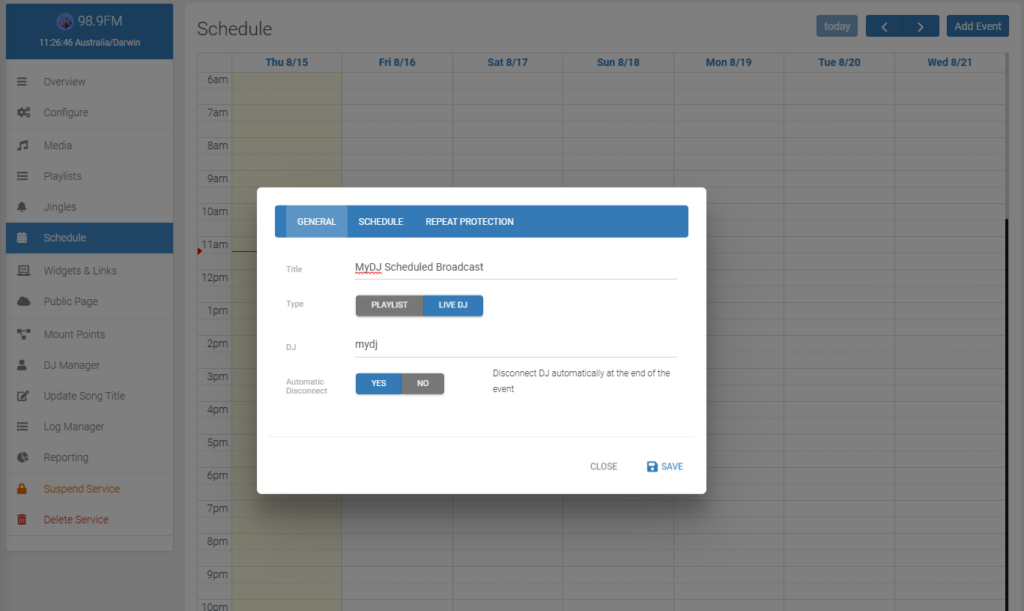
If you have enabled scheduled access only on a DJ account, the account will only be able to connect when they are scheduled.
From the Scheduling Calendar you can also set the Automatic Disconnect option to kick the DJ when the event ends.
DJ Priority
It is possible to prioritize DJ connections to your streaming server. When a DJ priority is configured, the DJ with the highest priority will go on air.
This feature requires Liquidsoap AutoDJ to be enabled on the service.
DJ Priority will only work if the DJ is connected to their specific Mount Point with an Icecast 2 compatible encoder.
If a DJ connects to the server with a higher priority then their stream will play instead of yours.
It should also be noted that you will not be disconnected, only your stream will not be used.