AutoDJ allows you to broadcast to your Icecast or Shoutcast service 24/7 without the requirement of connecting a source encoder from your computer. Providing recurring event scheduling that starts on time, advanced jingles, and intuitive playlist builder.
The MediaCP AutoDJ service provides features to:
- Upload music to the control panel
- Organise music into Playlists
- Schedule Playlists
- Schedule Intervals / Jingles to play by number of songs or by minute interval
- DJ account management and scheduling
Uploading Media
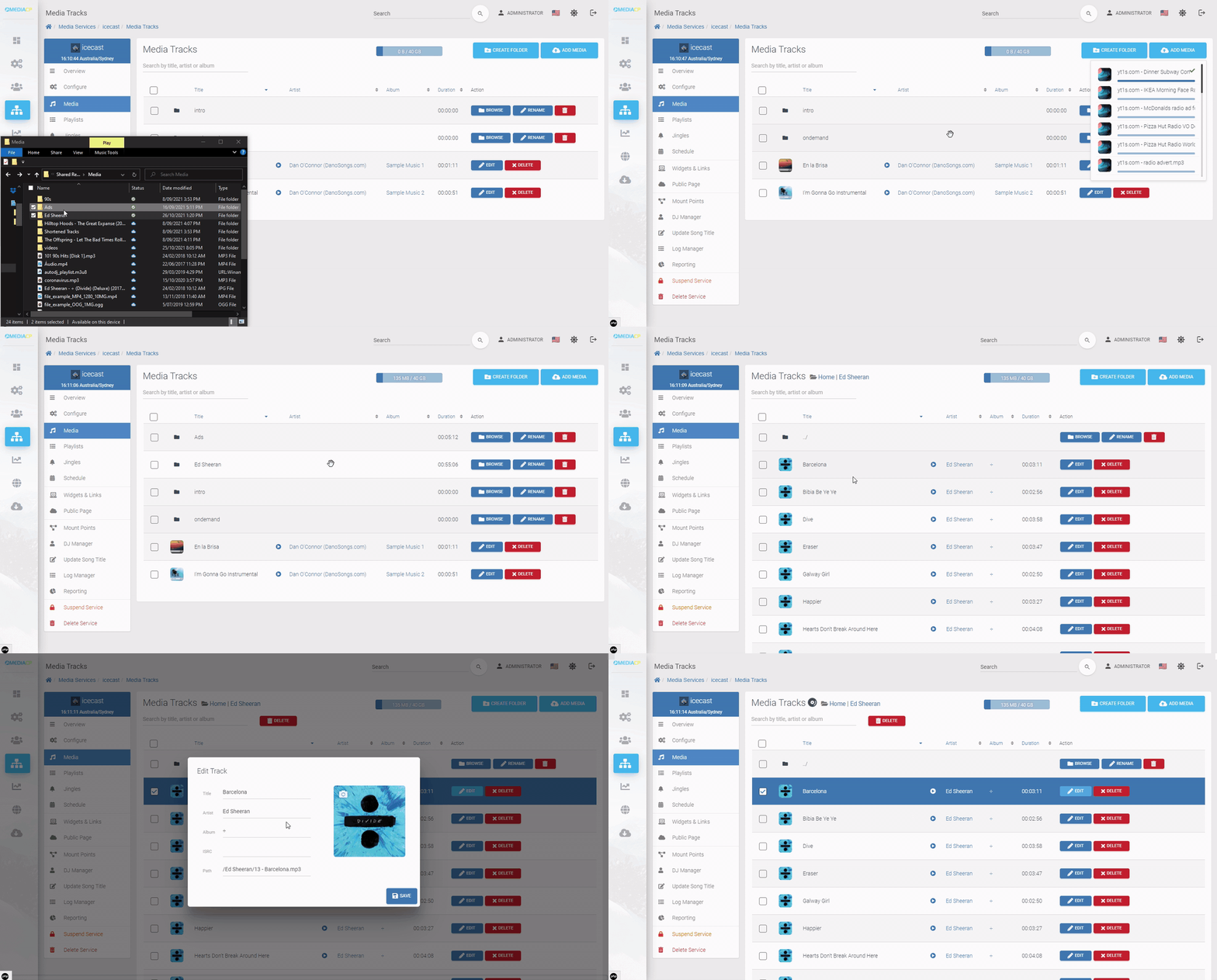
Before scheduling a playlist, you will need to upload music to the control panel.
- Login to your control panel
- Select Media Services
- Select Overview button next to your service
- Select Media from left side menu
- Drag and drop files from your PC here. You can also create folders to organise your music tracks. You also have the option of using FTP to manage your media files.
Creating Playlists
Playlists allow you to organise tracks and control when and how you would like the tracks to be broadcast. The MediaCP allows you to create and configure an unlimited number of playlists.
General Rotation Selecting a playlist to play on general rotation will set to play automatically when no scheduled playlist. The rotations can be configured with a Playback weight as well as at what times the playlists should play.
There must be at least one general rotation playlist configured for AutoDJ to work
Jingles are played in between General Rotations or Scheduled Playlists. They can be set to play hourly or after a set number of tracks or minutes. Just like other playlists you are able to setup repeat protection, configure shuffling or interrupting and more.
Adding Media to Playlists
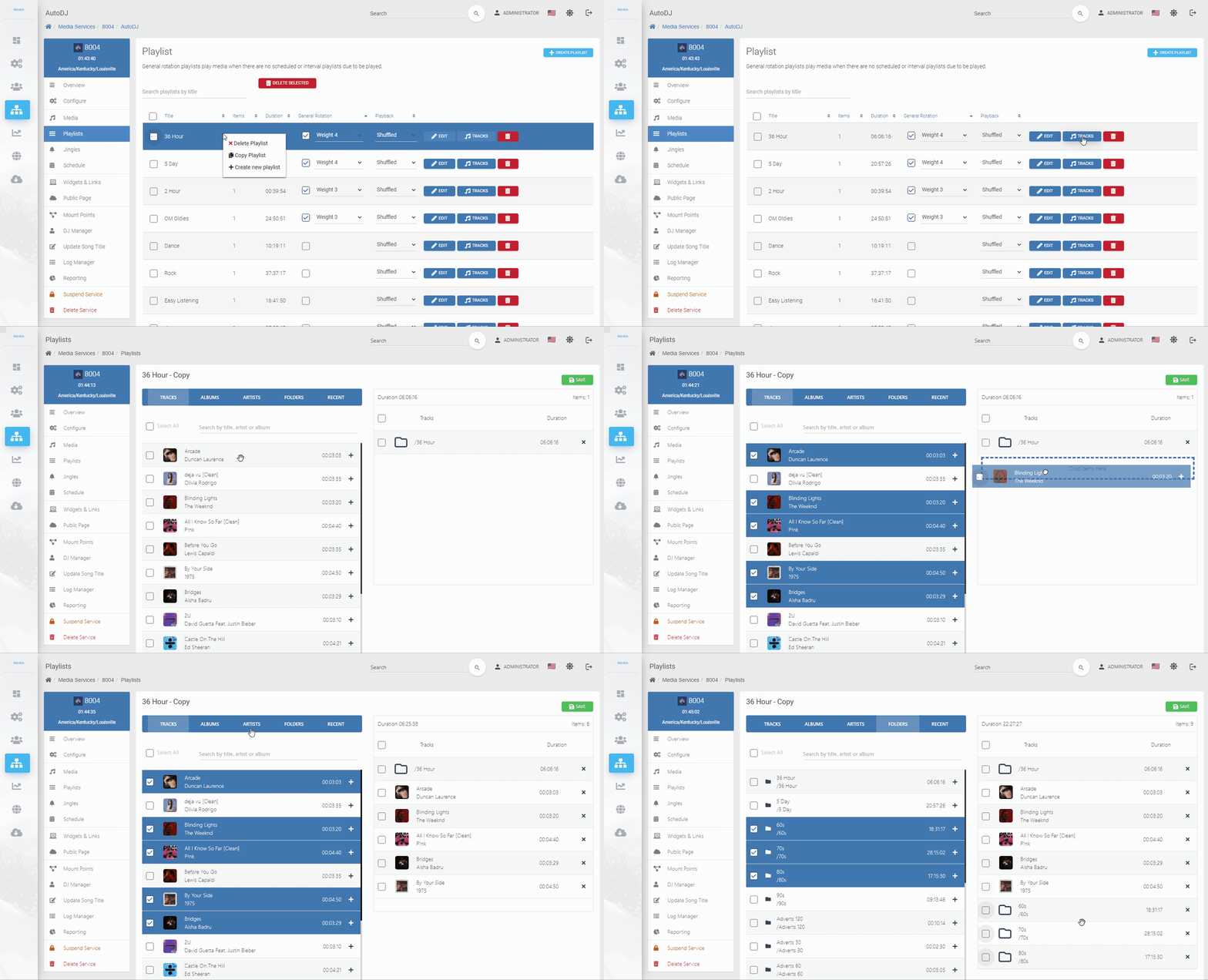
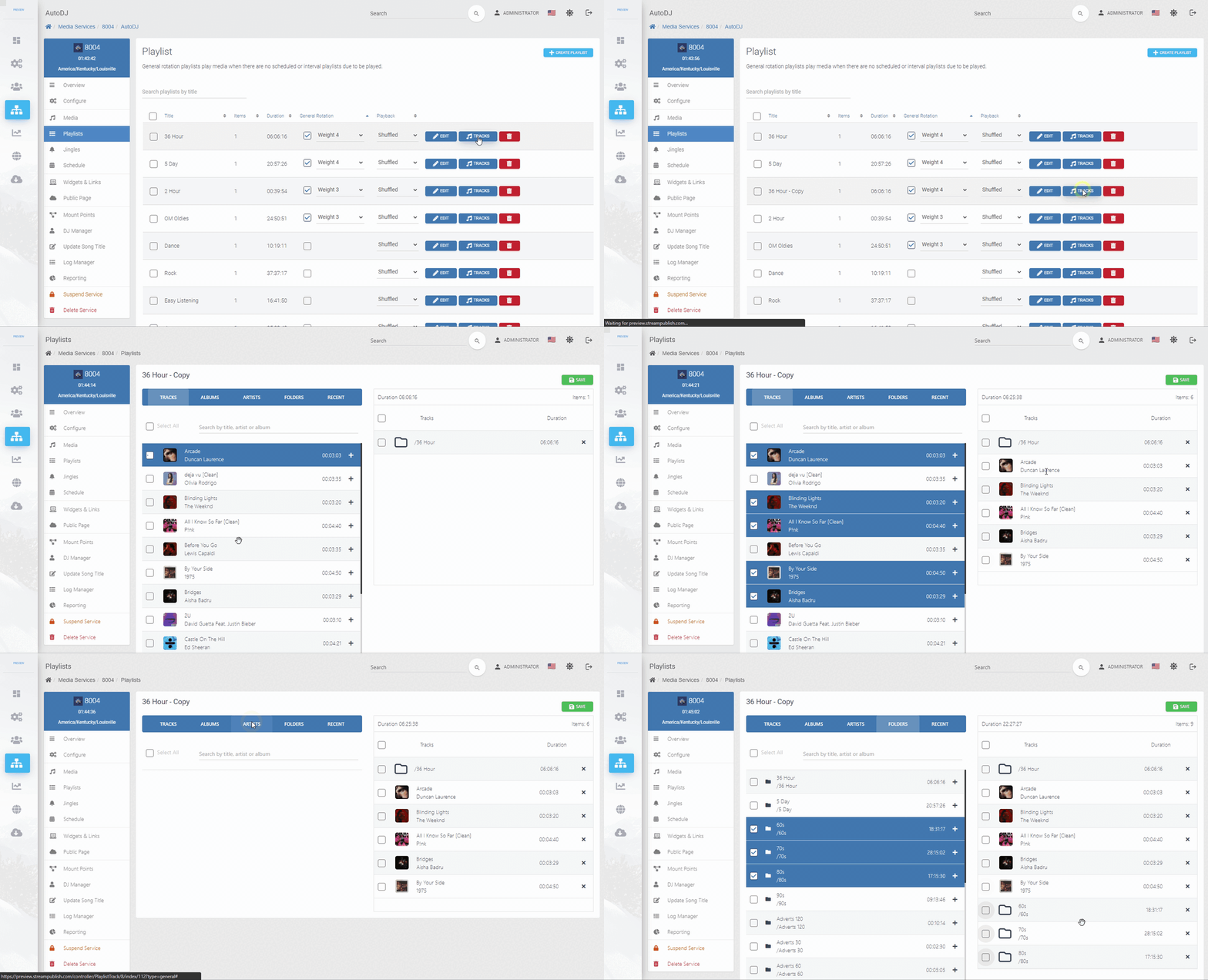
Playlists need media to be selected before you can start AutoDJ or schedule them.
- Select the Tracks button
- Drag or select content to add it to the selected playlist
- Select Save to apply the changes to the playlist
You can now schedule your playlists and start AutoDJ
Starting AutoDJ
You will need to start AutoDJ in order for your playlists that are enabled as general rotation or scheduled to playout.
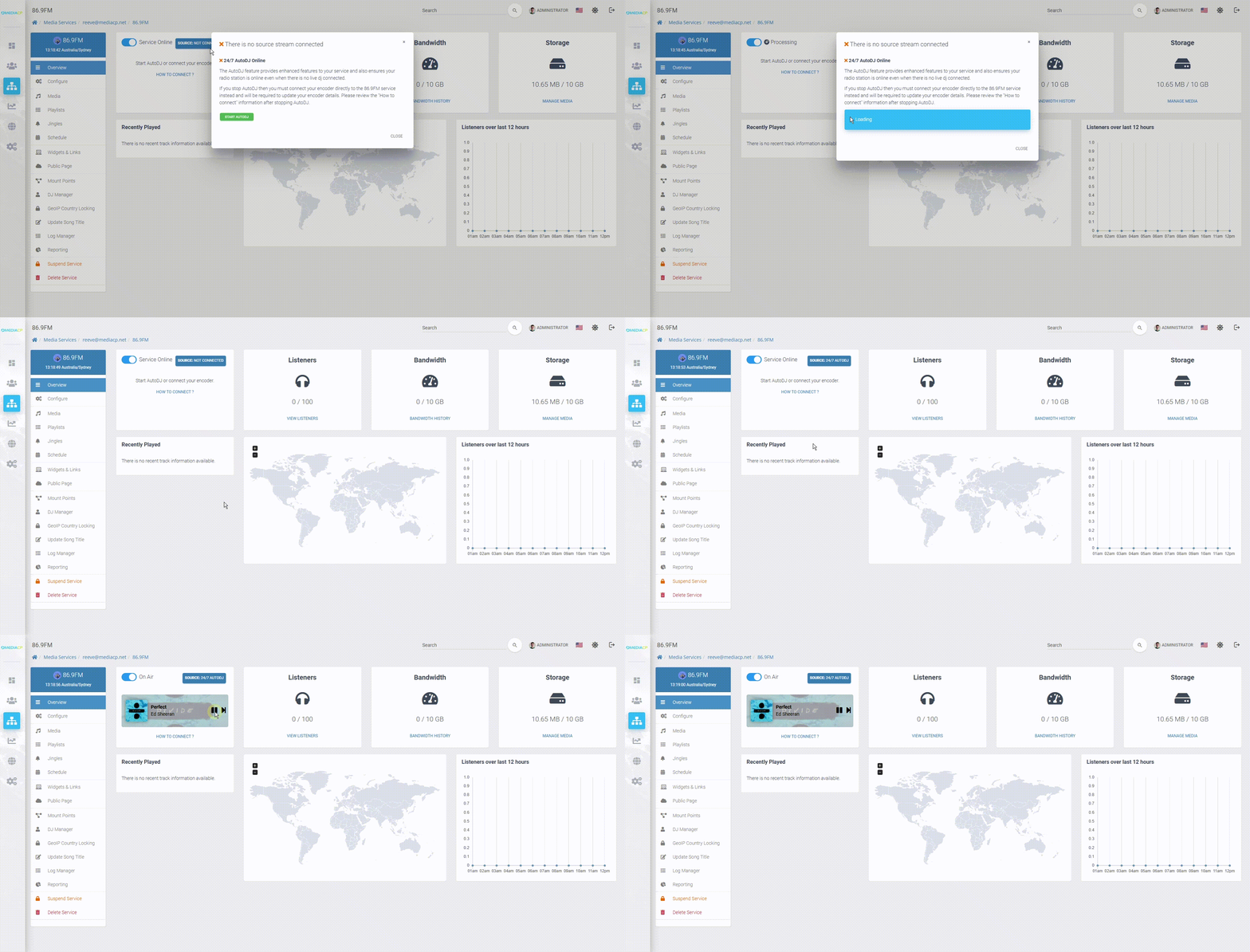
- Return to the Service Overview by selecting Overview
- From the service overview select the button labelled “SOURCE: NOT CONNECTED”
- In the popup window select Start AutoDJ
AutoDJ should now show as online and begin playing your content.
Scheduling Playlists
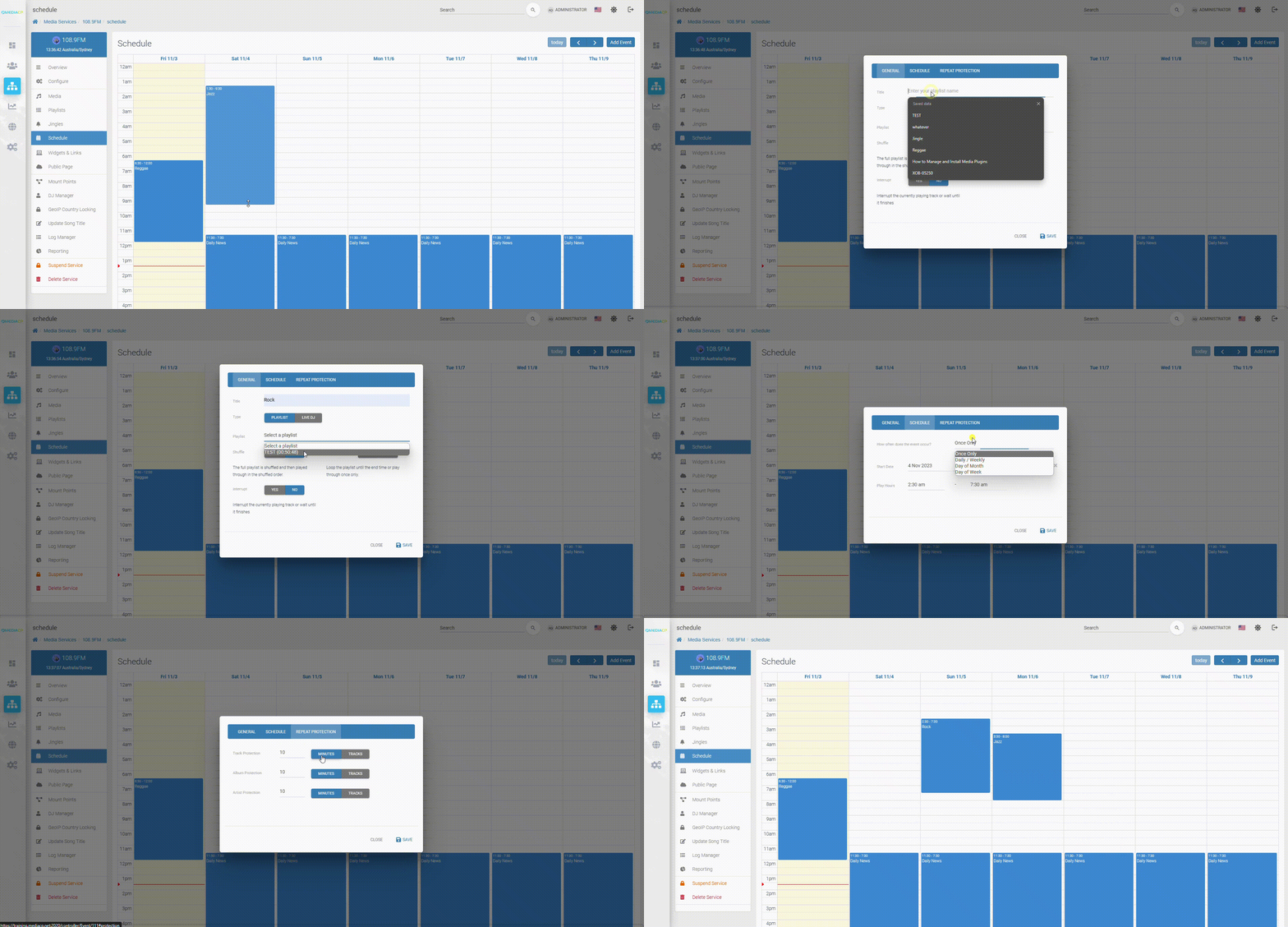
The scheduling calendar allows you plan your stations broadcasts, and adjust them on the fly. Simply create an event at the time you would like and select the playlist you would like to play.
Then you can choose between the comprehensive recurring options. You can choose if playback will loop, shuffle and interupt. Using the interrupt setting you can have the event start exactly at a specific time and interrupt any existing content.